Showing posts with label Technology Integration. Show all posts

Friday, March 3, 2017

A Learning Technology I Want To Learn More About: Mobile App Development

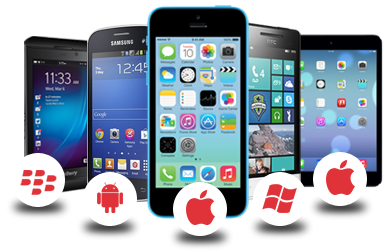
As mobile learning continues to increasingly make its way into the physical and online classroom, app development is one of the areas I have been interested for some time now.  There is no question that there is a plethora of apps that can address a number of educational learning needs whether a child is practicing basic addition/subtraction to college-level groups of students collaborating on planning documents with Google Drive on the go.  In my initial research into app development revealed that coding languages such as Java, C++, Python, Corona-One, and Ruby to name a few is necessary.  However, over time and further investigation, I began noticing a number of applications and services that require less of needing a programing language knowledge base but including a more graphical user interface instead.  This is similar to building web pages now where you don't have to have a working knowledge of HTML code.  Below are several cloud/Web-based applications I encountered that can potentially offer easy-to-use interfaces for creating educational mobile apps.
  1. App Press.  This is a Web-based app builder that targets iPhone, iPad, and Android applications.  App Press uses a Photoshop-like interface for assembling visual assets via layers.

  2. EachScape.  A cloud-based builder that provides a drag-and-drop interface for native iOS and Android apps as well has HTML5 Web apps.

  3. iBuildApp.  This easy-to-use builder provides customizable templates for iPhone, iPad, and Android apps.  No coding required as well.

  4. AppGyver.  This is another drag-and-drop builder that aims at iOS and Android apps.  Apps can then be published to Apple's App Store and Google's Play Store.
From an instructional standpoint, there are apps that simply don't fulfill a particular learning need.  It would be great to have mobile apps made in no time.  However, some level of technical "know how" and time are required to accomplish such task.  As with many learning technologies, time consumption is not always an option for faculty.  As an instructional designer, I would be interested in creating a Baylor faculty development app where instructors can book resources such as our video and audio booths and sign up for training sessions Online Teaching and Learning Services host.  In addition, the same app could contain training resources such as quick "how-to" videos for using Canvas tools such as creating screencasts with Kaltura or implementing quiz options to deter cheating or other forms of academic misconduct.  Let me know your thoughts and interests in app development!

Thursday, March 2, 2017

Assessment or Survey Tools

My "go-to" survey tool for at least the last 10 years has been Google Forms.  Google Forms has helped me to quickly create pre-assessment surveys I can use to collect data from students.  This data can then be used to adjust my instructional strategies and some design elements of course assignments and projects.  For example, if I know my learners have access to mobile devices such as tablets and smartphones, I can implement creative instructional strategies such as a survey that is completed live during one of our synchronous web conferencing sessions, students can reply to threaded discussion postings through the Canvas app for Android and iOS devices, any short quizzes or polls can also be completed synchronously or asynchronously, and much more.  There are several advantages of using Google Forms.
  • It's free.
  • Forms can be shared and used to collect data outside the learning management system.
  • The graphical user interface (GUI) makes Google Forms easy to use and having surveys, general forms, and short quizzes up in running in no time.
Some of the drawbacks to using Google Forms include:
  • Faculty and students are not likely to have official on-campus technical support for any Google applications including Forms. 
  • Limited abilities to format text.
  • File uploads are not supported.
  • Google Forms can be easily be shared to anyone so monitoring received data and sharing options is a must.
The embedded Google Form below is what I use to pre-assess my students on the technologies they have access to while enrolled in my MIS 1305 course.  You will notice that I have a number of questions regarding social media, mobile devices, and understanding of several Microsoft Office applications we use in 1305.


Other survey and/or quiz options including, but not limited to Survey Monkey, Poll Anywhere, the LMS's built-in survey/quiz tools, and Qualtrics.

Instructional Content I've Produced

Depending on the complexity of course content and concepts, relying on ready-made instructional media and resources is not always an option.  In some cases, pre-existing media may be to vague, unclear, contain poor quality audio and/or video, or simply not align to the unique learning goals and objectives established for your course.  Producing self-created instructional media, although time-consuming in some instances, may be necessary.  The embedded video below I created was used specifically for a 5-week online summer section of the MIS 1305 course I taught in 2016.


Last summer, we used textbooks from Cengage publishers.  Cengage's online system, Skills Assessment Manager (SAM), was used in order for students to submit assignments/projects aligned to our texts, receive real-time feedback, and have opportunities to correct their work and resubmit accordingly.  Pre-existing videos, including resources created by Cengage, were a bit vague.  So the video above is the result of me creating a video that was much clearer in explaining the process for submitting SAM projects.  This video was created using Camtasia Studio 8 for Windows/PC and uploaded/distributed using Kaltura through our Canvas LMS.

Sample of Ready-Made Content

Curating pre-existing, or ready-made, content to support instruction saves instructors a significant amount of time from having to create self-produced instructional media.  In my own teaching practices, I always search text publisher resources and the World Wide Web before identifying a need to create my own media.  In my 17 years of teaching in higher education, I have found myself producing my own media and curating pre-existing media/instructional resources.  The embedded YouTube video below is an actual resource I use in Canvas for my current MIS 1305 course that is being taught on campus face-to-face.


The video above explains to students how to submit grader activities through the MyITLab online system that is a companion resource to our textbooks by Pearson Publishers.  This resource is made available through the Canvas LMS and can be accessible for students in face-to-face and online sections of 1305.  In addition to curation, an added benefit to using these ready-made resources is that time I save by not having to recreate media that already addresses a need or goal I have for my students. 

Synchronous Communications: Live Web Conferencing

A common criticism of online courses is that the social element of a traditional face-to-face learning environment is removed because of the heavily asynchronous "anytime, anywhere" nature of online learning.  By the same token, the asynchronous is frequently cited as an appealing characteristic for choosing to pursue online learning opportunities.  The technology that has come a long way to provide real-time communications for students in fully online learning environments.  Web conferencing applications have brought students and instructors several steps closer to having face-to-face interactions that many of us are accustomed to.  Web conferencing applications such as Big Blue Button, Adobe Connect Pro, Web Ex, and Blackboard Collaborate provide opportunities for real-time communications and collaboration for students and instructors in online environments.  My personal favorite web conferencing application so far is Adobe Connect.  However, as an instructor and instructional designer, I have used other applications as well.  At my current institution, we have both Blackboard Collaborate and Big Blue Button integrated into our Canvas learning management system (LMS).  The screenshot below is a glimpse into the Blackboard Collaborate live virtual environment.

Click the image to view a larger version.

Visual presentations, polling, live chat, file sharing, screen sharing, and breakout sessions are just some of the features that can enhance live communications and interactions among students in this virtual environment.  I use synchronous communications heavily in online graduate-level courses.  For example, I will host end-of-module (modules may run from 2 to 3 weeks long) live sessions to summarize and elicit student feedback on how the concepts of a given module may be applied to their current work environments.  Our main live discussion may then be followed by a smaller activity where I break the class into small groups via breakout sessions so they can engage and communicate with their fellow group members.  Another use of live synchronous web conferencing is to host virtual office hours.  Similar to traditional on-campus office hours, time could be set aside to be available, virtually, for online students.  A faculty member can simply leave the live web conferencing environment/room open to see if students enter or they can make individual appointments to meet virtually with students.  With any form of synchronous communications, must expect the unexpected to occur.  Slow Internet speeds, audio and video equipment may not function properly with out computer resets, and audio/video coming in choppy or degraded are just a few examples of instances faculty need to be prepared for.  Other potential uses of live synchronous web conferencing include:
  • Real-time group or individual presentations
  • Brainstorming and/or problem-solving sessions
  • Study groups, tutoring, and/or team meetings
  • and much more.

Thursday, February 2, 2017

A Key #EdTech Blog I Follow

One of the most useful blogs I have been following for many years now is Free Technology for Teachers by Richard Byrne.  The main characteristic that qualifies this as a blog is that the latest post, common in most social media services/tools, is always at the top of the page.  A second characteristic is that I can subscribe to it.  Third, I can search to an archive of past postings.  Lastly, blogs are reflective of Web 2.0 meaning that we are now creators of content, not just passive readers of content (i.e. Web 1.0 such as the AOL and Netscape days).  This blog's primary purpose is to share free technology resources for teachers that can have implications for classroom instruction.  Although there tends to be a K-12 focus, I have found that most of the resources can be used in higher education as well.  Mr. Byrne is a former high school teacher so that's part where the K-12 theme comes from.  To keep up-to-date with postings, I subscribe to the RSS feed using Feedly.  With Feedly (I migrated to this tool when Google Reader retired), I can subscribe to multiple blogs related to instructional/educational technology and see the posts on one single page.  Over the years, I have frequently re-posted links to these originating blog postings to several social media channels such as Twitter and Diigo in order to share my findings to a much larger audience.

Tuesday, January 24, 2017

My Quick Thoughts on Twitter to Support Learning


Image from storify.com
The short answer to the question “can this tool (Twitter) meet an instructional need?” is yes.  First, Twitter can be a valuable research tool for finding instructional resources, research, blogs, etc. through the use of hashtags.  Using Twitter as a research tools saves a significant amount of time as others already identified resources that may be useful and tagged the posting to share with a much broader audience. The Twitter feed below is an example that shows how postings with the hashtag #edtech are currated making the search process much more efficient.  Second, the 140-character limitation of “tweets” also forces individuals to keep posts short and to the point.  Well-written tweets quickly identify the resource and its purpose.  The third, and one of the most important uses of Twitter in my opinion, is establishing connections with other individuals that have similar interests.  Whether you’re interested in educational technology, science, math, biking, fishing, gaming, or e-learning, Twitter makes it very easy to find and connect (i.e. follow) to others with these similar interests......an essential component of a personal learning network (PLN).  

Twitter’s learning curve is not steep at all.  I have been using Twitter since April 2009.  Twitter’s interface parallels with several contemporary social media services such as Facebook and blogs where the most recent posts are always at the top of the feed.  Twitter also integrates with Facebook, mobile devices, Feed.ly, the Canvas learning management system, and a wide variety of Web-based applications that makes sharing resources to a large audience in a short amount of time quite efficient. 

Friday, July 18, 2014

Flipped Classroom Strategy 4: Muddiest Point (In/During Class Instructional Strategy)

Initial Thoughts and Introduction

In my continued research into flipped learning and its implications in the university/college
classroom, I'm amazed at the creative strategies faculty members use to engage the adult learner and make the best use of class time.  As a current instructional designer at my respective institution, I find myself reflecting on my own past teaching experiences as an educator (tenure-track professor, adjunct, and teaching assistant) in higher education and past leadership experiences as a technology integration administrator working directly with K-12 teachers.  More specifically, two themes begin to emerge in my mind from both higher education and K-12 sectors: instructional strategy and assessment.  In a recent presentation on flipped classrooms I delivered during a summer faculty institute, I used the appropriate term formative assessment in my discussion of how the higher levels of Bloom's Taxonomy applies to the section of both (a) instructional strategies and (b) assessment techniques to identify student understanding (or lack of) throughout the learning process. 

Friday, June 20, 2014

Flipped Classroom Strategy 3: Think-Pair-Share (In/During Class Instructional Strategy)

A common yet important point about the flipped classroom in discussions among higher education faculty and instructional designers is the fact that there is no one right way or strategy for the flipped method.  This includes the strategies implemented before, during,
and after class time.  However, in addressing the question what is the best use of class time? that is central to the flipped classroom, it is important that we explore the active learning strategies that we are seeing faculty implement in successful yet engaging flipped classroom/learning environments.  One such active learning strategy is think-pair-share.

Monday, June 9, 2014

Flipped Classroom Strategy 2: Identify Where to Flip and Start Small

In a recent presentation, entitled The Flipped Classroom, I delivered to higher education faculty at my current institution, we began our dialog reviewing various definitions of the flipped classroom.  Early definitions and interpretations simply reversed when homework and lectures took place: students watched recorded "lectures" outside of class and in-class activities would normally involve applying what they learned from the videos (i.e. the homework).  More contemporary and refined definitions, such as the one below by the Flipped Learning Network (FLN), describe the flipped classroom as a unique learning environment that requires careful planning, but focuses on learning.  

Flipped learning is a pedagogical approach in which direct instruction moves from the group learning space to the individual learning space, and the resulting group space is transformed into a dynamic, interactive learning environment where the educator guides students as they apply concepts and engage creatively in the subject matter. (FLN, 2014).

Monday, June 2, 2014

Flipped Classroom Strategy 1: Taking Notes with VideoNot.es

Instructors who had success with flipping their classrooms realize that students have to take initiative and be held accountable for viewing content (i.e. videos, text readings, websites, etc.) before class and time is dedicated to learning experiences in which students apply what they have learned.  A common question, however, is "how do I know my students are watching the videos (or readings) before they come to class?"  This is a valid question that needs to be addressed for a successful flipped lesson or module/unit to be implemented.  One common strategy instructors implement is to have students complete a short assessment through a learning management system's (LMS) quizzing/survey tool or Google Form to (1) hold students accountable for watching or reading content prior to class and (2) to self-assess understanding of a concept or other content presented on the video and/or reading.  As an additional incentive, instructors may make completion of these short assessments as part of an assignment or participation grade.  Another "before class" strategy in conjunction or in replacement of a traditional short assessment is to have students summarize or identify "burning" questions that students may need some brief explanation on at the top of the face-to-face class session.  

One tool worth exploring in supporting "before class" writing tasks in the flipped classroom environment is VideoNot.es.  VideoNot.es allows users to watch a video that resides on a video hosting service, such as YouTube and Khan Academy, on one side of the screen while having the capability of typing notes on the other sides of the screen (see image below).

Students can easily take notes, write summaries, and/or jot down questions regarding the contents of the video.  Currently, VideoNot.es works with video content posted on YouTube, Khan Academy, and Vimeo.

VideoNot.es integrates with Google Drive as an added application.  You can learn more about enabling additional applications within Google Drive here.  Because of this seamless Google Drive integration, students can easily open/modify their video notes and even share their notes with other classmates and/or the instructor.  Best of all...VideoNot.es is free!

To get started, visit VideoNot.es and click on the green "Connect with Google Drive" button.

Do you have experience with VideoNot.es?  Do you have other tools or ideas for "before class" activities/assessment in flipped learning environments?  Share your experiences and ideas in the comments section below.

Monday, April 7, 2014

QR Code Generators, Mobile Apps, and Integration Ideas

As mobile learning and technology increasingly make their way into the higher education learning space (face-to-face, blended, and online), QR codes can be used in innovative ways that can gain students' attention and make lesson material and content more interactive.

What is a QR code?  A QR, or "quick response," code is simply a scannable image typically in the shape of a square.  It resembles a bar code with black, or other color, splotches instead of straight lines.  Created in 1994, QR codes were originally used to track vehicle parts during the manufacturing process.  However, the QR codes have expanded for broader contexts and uses; particularly for accessing information with mobile devices.

What does a QR code do?  Using an Internet-connected mobile device such as a
smartphone or tablet with a camera, you scan the QR code using a QR code reader app.